 Musea Paper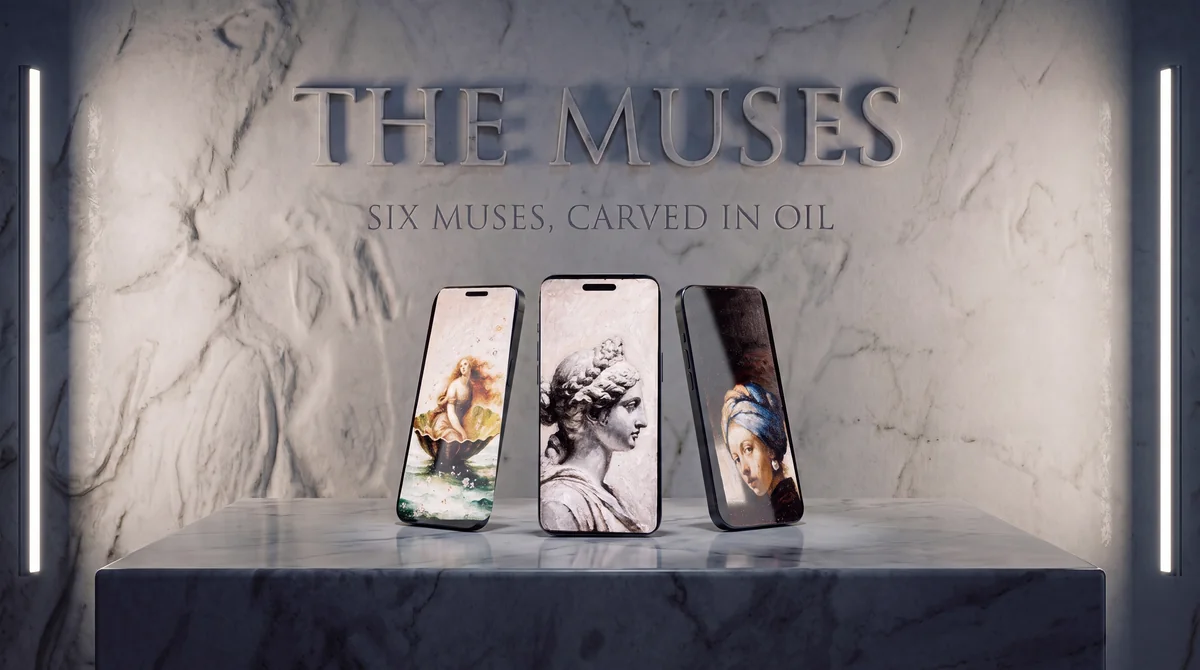
Start with the right composition
Choose the lock-screen file, not the quieter home-screen companion. The lock version places the main subject lower and preserves open space near the clock.
Add a new lock screen
Touch and hold your current lock screen, choose Add, then select Photos. Pick the Musea image from your library.
Adjust the crop
Pinch gently until the subject meets the clock. Avoid enlarging so far that the artwork loses its edges or important painted text moves under the Dynamic Island.
If depth effect is unavailable
Try removing lock-screen widgets or choosing a simpler clock layout. Device and iOS support varies. The composition still works as a standard lock screen when the overlap effect is off.
View The Muses